Tutorial: Add a Family Outcome for IFSP Meetings
Use this tutorial to add a family outcome for IFSP meetings on the IFSP Meetings page.
Complete the following steps to perform this tutorial:
-
Display the IFSP Meetings page.
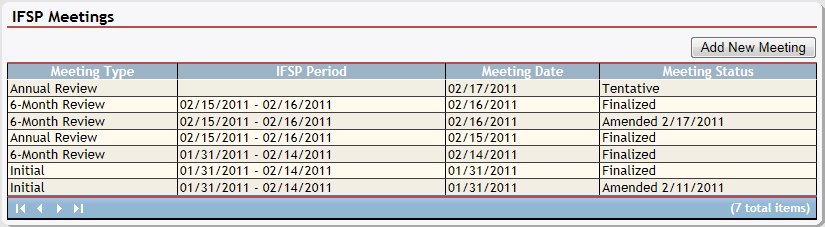
IFSP Meetings page (default view)
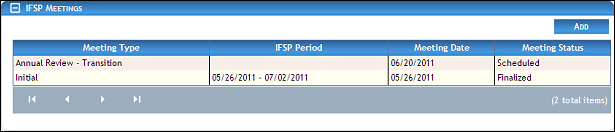
IFSP Meetings page (default view) for Coordinator/District roles

IFSP Meetings page (default view) for Provider/State roles
|
NOTE: This page contains collapsible data. Sections can be collapsed by clicking the [-] beside the section heading. Click the [+] to expand the section. Depending on the method of access and your current permissions, the page displays differently and some information may be disabled or unavailable. |

-
Double-click on a meeting in the IFSP Meetings table. The page refreshes and displays detailed information below the table.
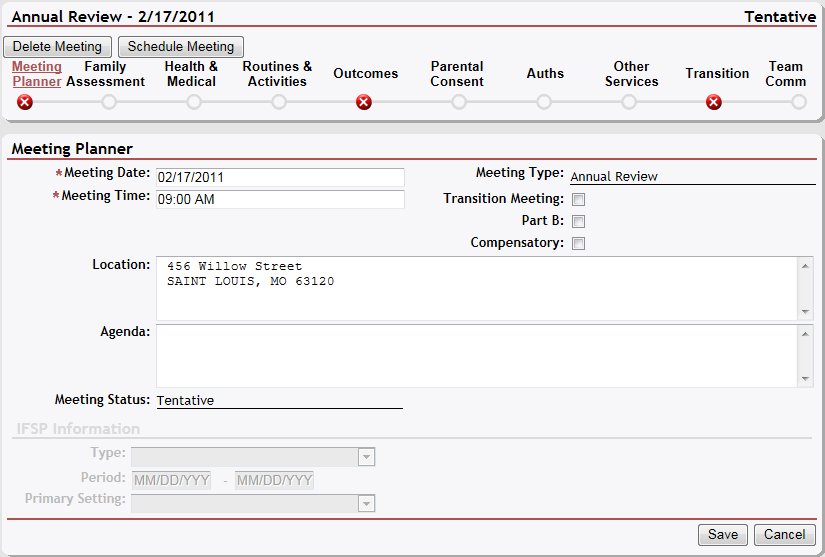
IFSP Meetings page (meeting planner view)
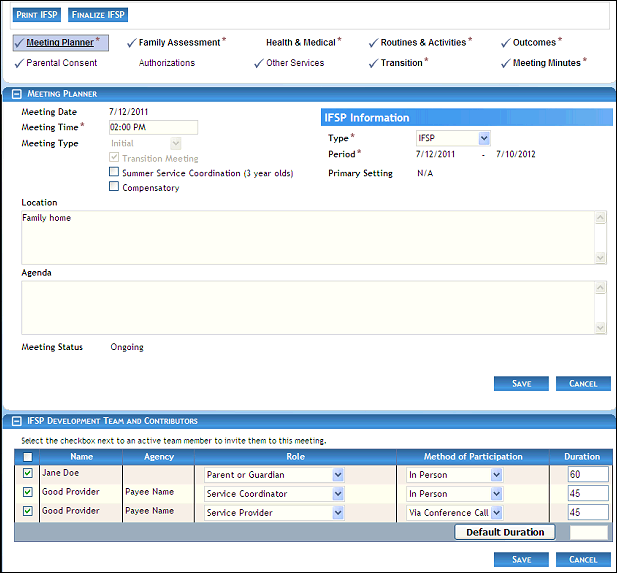
IFSP Meetings page (meeting planner view) for Coordinator/District roles
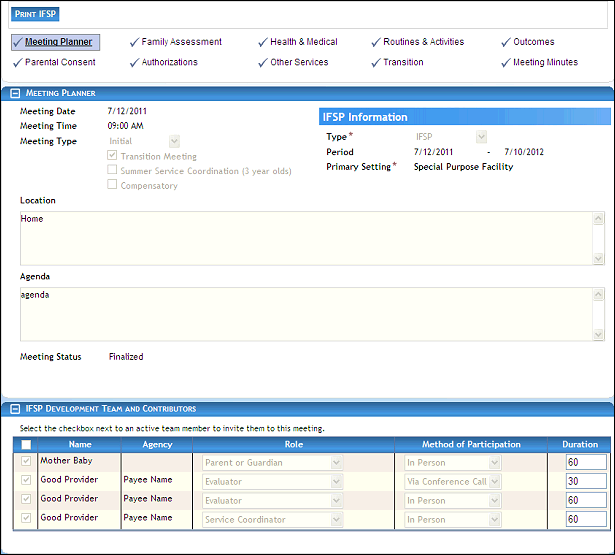
IFSP Meetings page (meeting planner view) for Provider/State roles
-
View the selected meeting date and status in the IFSP Meetings section heading.
-
Use the function buttons to manage the IFSP meeting:
Click Cancel Meeting to cancel a scheduled IFSP team meeting.
Click Reschedule Meeting to reschedule a scheduled IFSP team meeting.
Click Household Worksheet to display the Household Date Worksheet in PDF format.
Click Print IFSP to display the Individualized Family Service Plan in PDF format for finalized meetings.
Click Finalize IFSP to finalize an on-going IFSP team meeting.
Click Delete Meeting to delete a scheduled IFSP team meeting.
Click Schedule Meeting to schedule a tentative IFSP team meeting.
-
Click the Outcomes link. The page refreshes and displays an Outcomes table.
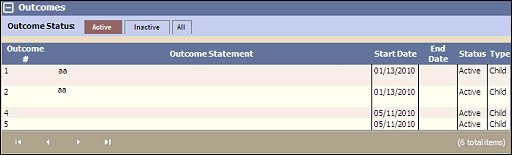
IFSP Meetings page (outcomes default view)
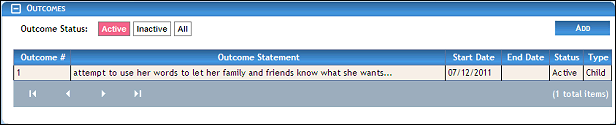
IFSP Meetings page (outcomes default view) for Coordinator/District roles
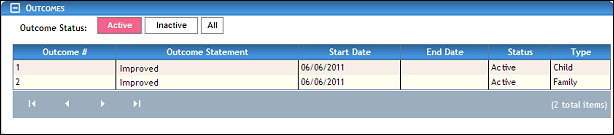
IFSP Meetings page (outcomes default view) for Provider/State roles
|
NOTE: Depending on the status of the selected meeting, the data displayed on the page may be read-only or unavailable. Meetings with a status of On-going or Scheduled can be updated; however, some information populated from previous meetings is view-only. Meetings with a status of Finalized are read-only and cannot be updated. For meetings with a status of Tentative, Cancelled, or Rescheduled, this page is not available. |
-
Click the Add button. The page refreshes to display additional fields for entry.
The radio button group indicates the type of outcome that can be added for the meeting. The radio button group consists of the following radio buttons:
The Child Outcome radio button is used to add an outcome for the child. It is selected as the default.
The Family Outcome radio button is used to add an outcome for the family.
Select the Family Outcome radio button.
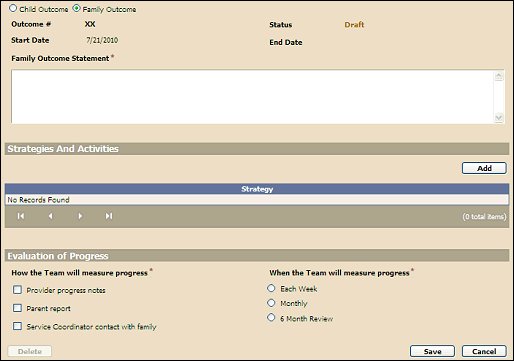
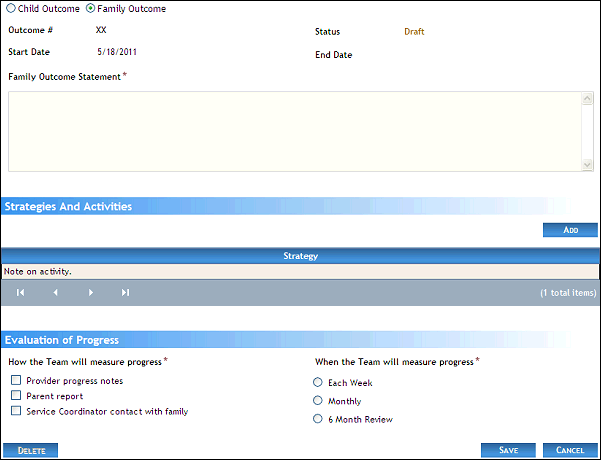
IFSP Meetings page (add family outcome view)
-
Complete the following information as necessary:
Outcome # displays the sequence number of the outcome.
Start Date displays the date on which the activity begins.
Status displays a read-only label.
End Date displays a read-only label as the outcome is being added or is in process, and displays the date once the outcome has been completed.
In Family Outcome Statement, enter the routine that the person will participate in. At least 1 character must be entered, and up to 1000 characters can be entered as necessary.
-
Add a strategy to the Strategies and Activities table by clicking the Add button. At least one strategy is required to save the outcome. The page refreshes to display an additional field for entry.
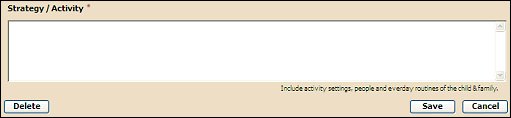
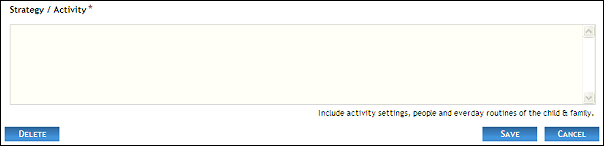
IFSP Meetings page (strategy/activity details or add view)
In Strategy/Activity, enter the strategy or activities that will be worked on to achieve the outcome. This can include activities, people, and routines. At least 1 character must be entered, and up to 2000 characters can be entered as necessary.
-
Complete the following information in the Evaluation of Progress section as necessary:
In How the Team will measure progress, select one or more check boxes to indicate how the progress towards the outcome will be evaluated.
In When the Team will measure progress, select one of the radio buttons to indicate when the progress towards the outcome will be evaluated.
|
NOTE: Asterisks (*) indicate which fields are required on the page. If required information is missing, an error message displays at the top of the page after saving the data. |
-
Click the Save button. The page refreshes and displays the new information in the Outcomes table.
Version 1.6