Tutorial: Add an Internal Referral from the Referrals Page
Use this tutorial to add an internal referral for a child on the Referrals page.
Complete the following steps to perform this tutorial:
-
Display the Referrals page.

Referrals page (default view)

Referrals page (default view) for Coordinator/District roles

Referrals page (default view) for State role
|
NOTE: Depending on the method of access and your current permissions, the page displays differently and some information may be disabled or unavailable. |

-
Click the Add button. The page refreshes and displays additional fields for entry.
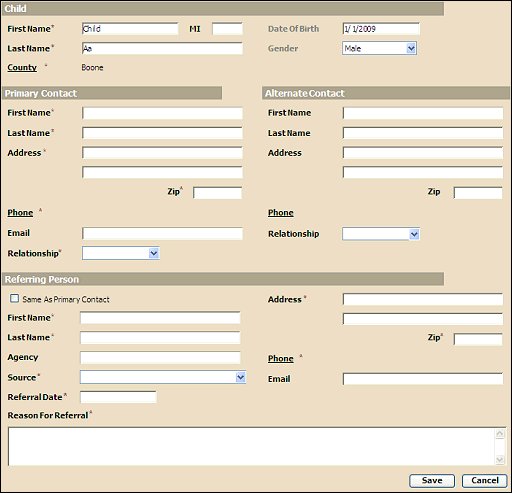
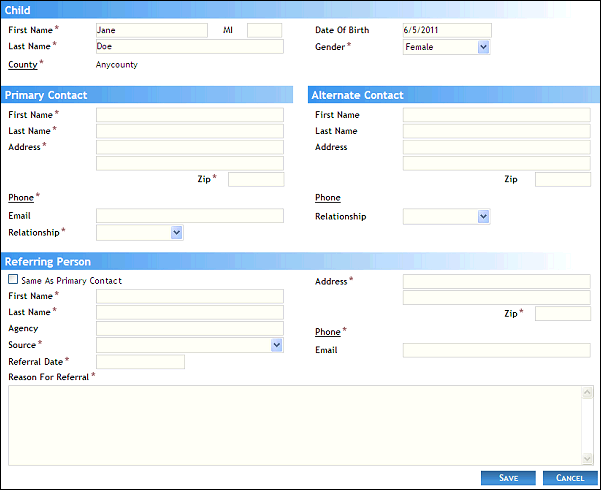
Referrals page (add view)
-
View or update the child's details as necessary.
The Child section displays the child's demographic data, which can be updated as follows:
In First Name, enter the first name of the person. At least two characters must be entered. You can enter up to 25 characters as necessary.
In Middle Name, enter the middle name of the person. Only one alphabetic character can be entered.
In Last Name, enter the last name of the person. At least two characters must be entered. You can enter up to 40 characters as necessary.
Click the County link to search for and select the county in which the person resides or practices. For more information about searching for and viewing the list of counties, see the County Search topic.
In Date of Birth, enter the month, day, and year on which the person was born. For more information about entering dates, see the Calendar Controls topic.
In Gender, select the person's sex from the drop-down list.
-
Add the contact information for the child's primary contact person.
The Primary Contact section displays the name and details for the child's primary contact person, which can be updated as follows:
In First Name, enter the first name of the person. At least two characters must be entered. You can enter up to 25 characters as necessary.
In Last Name, enter the last name of the person. At least two characters must be entered. You can enter up to 40 characters as necessary.
In Address, enter the street address at which the residence (or office) is located. You can enter up to 100 characters as necessary in each of the two address controls as necessary.
In ZIP, enter the complete five-digit ZIP code in which the residence (or office) is located. Once entered, the name of the city and the two-character state abbreviation associated with the ZIP code are displayed.
In Phone, enter one or more telephone numbers at which the person can be contacted. For more information about entering telephone numbers, see the Telephone Numbers topic.
In Email, enter the electronic mail address for the person. Email addresses must be entered in the format of: name@xxx.zzz. At least 10 characters must be entered, and you can enter up to 50 characters as necessary.
In Relationship, select the specific relationship in the household to assign to the person from the drop-down list.
-
Add the contact information for the child's secondary or alternate contact person, as necessary.
The Alternate Contact section displays the name and details for the child's secondary contact person, which can be updated as follows:
In First Name, enter the first name of the person. At least two characters must be entered. You can enter up to 25 characters as necessary.
In Last Name, enter the last name of the person. At least two characters must be entered. You can enter up to 40 characters as necessary.
In Address, enter the street address at which the residence (or office) is located. You can enter up to 100 characters as necessary in each of the two address controls as necessary.
In ZIP, enter the complete five-digit ZIP code in which the residence (or office) is located. Once entered, the name of the city and the two-character state abbreviation associated with the ZIP code are displayed.
In Phone, enter one or more telephone numbers at which the person can be contacted. For more information about entering telephone numbers, see the Telephone Numbers topic.
In Relationship, select the specific relationship in the household to assign to the person from the drop-down list.
-
Add the details on the child's referral and referring person.
The Referral section displays the source and reason of the child's referral, which can be updated as follows:
Select the Same As Primary Contact check box to indicate that the primary contact person is also the person who referred the child to the program. When this check box is checked, the page refreshes and the primary contact person's demographic information is copied from the Primary Contact section to the corresponding referral person's demographic fields. When this check box is unchecked, the page refreshes and the referral person's demographic fields are cleared.
In First Name, enter the first name of the person. At least two characters must be entered. You can enter up to 25 characters as necessary.
In Last Name, enter the last name of the person. At least two characters must be entered. You can enter up to 40 characters as necessary.
In Agency, enter the name of the associated agency. You can enter up to 65 characters as necessary.
In Source, select the primary referral source from the drop-down list.
In Address, enter the street address at which the residence (or office) is located. You can enter up to 100 characters as necessary in each of the two address controls as necessary.
In ZIP, enter the complete five-digit ZIP code in which the residence (or office) is located. Once entered, the name of the city and the two-character state abbreviation associated with the ZIP code are displayed.
In Phone, enter one or more telephone numbers at which the person can be contacted. For more information about entering telephone numbers, see the Telephone Numbers topic.
In Email, enter the electronic mail address for the person. Email addresses must be entered in the format of: name@xxx.zzz. At least 10 characters must be entered, and you can enter up to 50 characters as necessary.
In Relationship, select the specific relationship in the household to assign to the person from the drop-down list.
In Reason For Referral, enter the reason why the person was referred to the Georgia Babies Can't Wait program. At least one character must be entered, and you can enter up to 500 characters as necessary.
Select The family has been informed of this referral check box to indicate that the family has been contacted regarding the child's referral to the Georgia Babies Can't Wait program. This check box displays if the referral Source is not "Parent" "CAPTA".
In If not, how do you plan on informing them?, enter the planned method of contact regarding the person's referral to the Georgia Babies Can't Wait program. You can enter up to 500 characters as necessary. This field displays if the referral Source is not "Parent" "CAPTA".
In How did you find out about Babies Can't Wait?, select enter the way in which the referring person heard about the Georgia Babies Can't Wait program from the drop-down list. This field displays if the referral Source is "Parent".
Children 1st indicates whether the referral came from Children 1st.
|
NOTE: Asterisks (*) indicate which fields are required on the page. If required information is missing, an error message displays at the top of the page after saving the data. |
-
Click the Save button. The page refreshes and displays the new information in the Referrals table.
Version 1.6