Tutorial: Add Insurance for a Child
Use this tutorial to add insurance for a child on the Health Plans page.
Complete the following steps to perform this tutorial:
-
Display the Health Plans page.
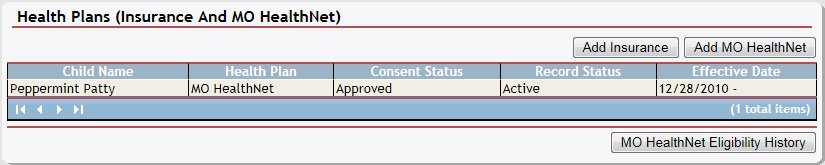
Health Plans page (default view)
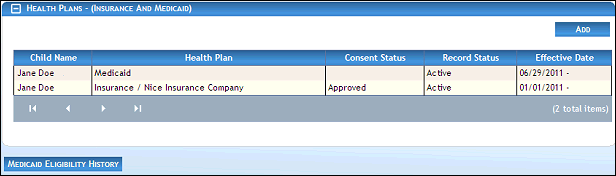
Health Plans page (default view) for Coordinator/District roles
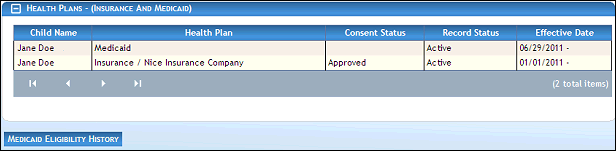
Health Plans page (default view) for State role
|
NOTE: This page contains collapsible data. Sections can be collapsed by clicking the [-] beside the section heading. Click the [+] to expand the section. Depending on the method of access and your current permissions, the page displays differently and some information may be disabled or unavailable. |

-
Click the Add button. The page refreshes and displays the insurance type radio button group.
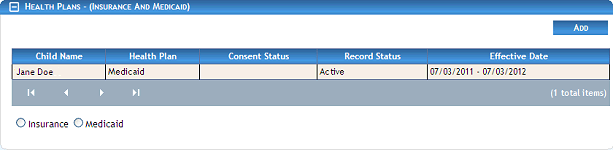
Health Plans page (radio button group visible)
-
Select the Insurance radio button. The page refreshes and displays additional fields for entry.
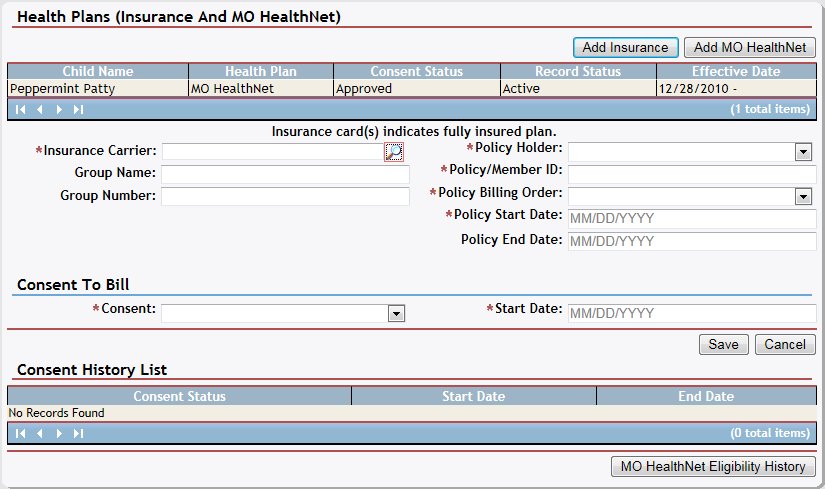
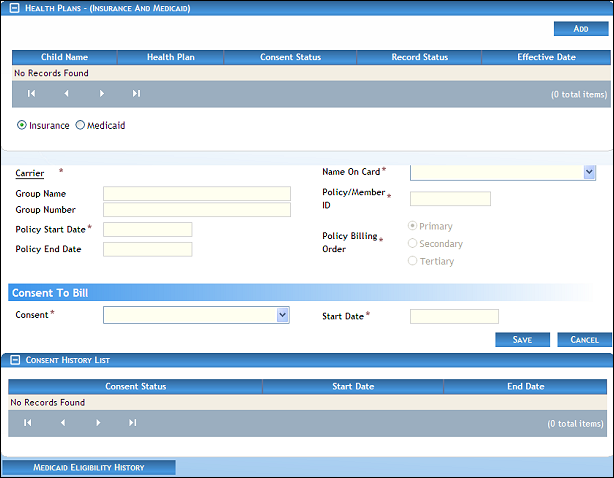
Health Plans page (add insurance view)
-
Click the Carrier link. The Insurance Carrier Search page displays when clicked.


Insurance Carrier Search page (default view)
-
Complete the following information to perform a search:
In Name, enter the name of the insurance carrier on which to search. You can enter partial information to widen your search. At least two characters must be entered.
-
Click Search. The page refreshes and results found to match the search criteria display in the results table.
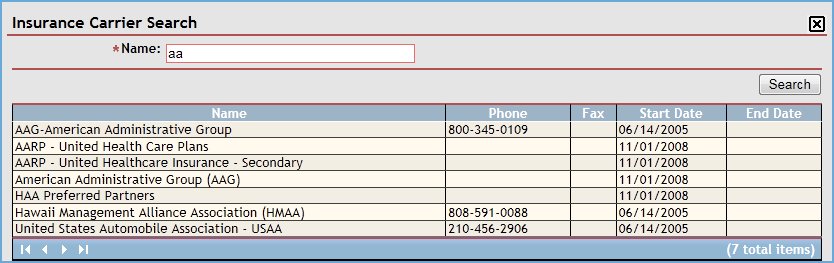
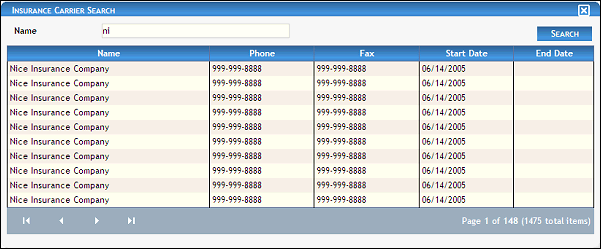
Insurance Carrier Search page (results found)
When Search is clicked, results found to match the search criteria specified are displayed in the following column(s) of the table:
Name displays the insurance carrier's name.
Phone displays the telephone numbers at which the person (or primary contact) can be contacted.
Fax displays the number to which faxes can be sent.
Start Date displays the date on which the person (or group) becomes (or became) active or assigned.
End Date displays the date on which the person (or group) becomes (or became) inactive or unassigned.
|
NOTE: If no results are found, the table displays a single row containing the text: "No Records Found". For more information about tables, see the Tables topic. |
-
Double-click on an insurance carrier in the results table to select the carrier. The Health Plans page refreshes and displays the selected carrier's name.
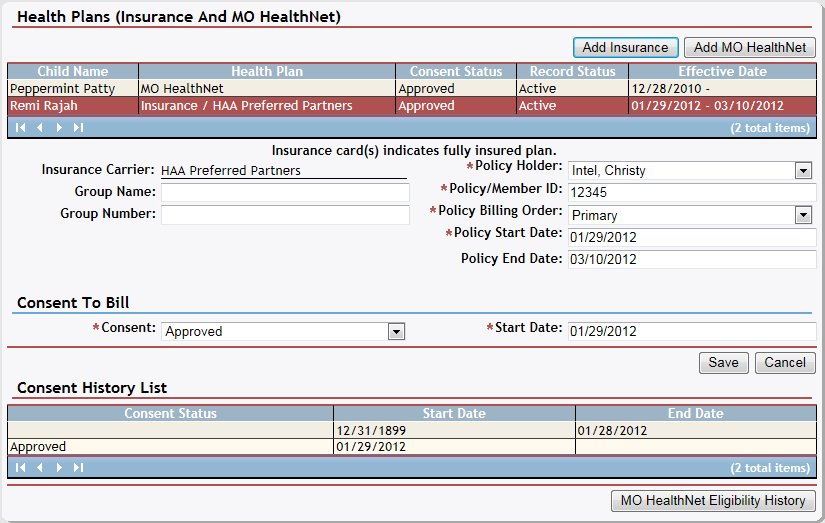
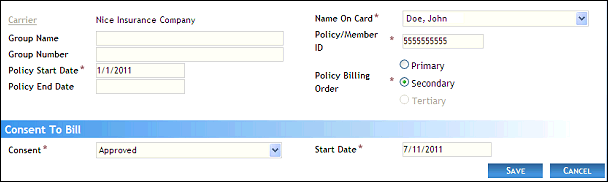
Health Plans page (insurance details view)
-
Complete the following information as necessary:
Carrier displays the insurance carrier's name. Click the Carrier link to search for and select the insurance carrier. For more information about searching for and viewing the list of carriers, see the Insurance Carrier Search page.
In Group Name, enter the name of the health plan group.
In Group Number, enter the number for the health plan group.
In Policy Billing Order, select the billing order from the drop-down list.
In Name on Card, select the person's name as it appears on the card from the drop-down list.
In Policy/Member ID, enter the policy number or member identification number.
In Policy Start Date, enter the date on which the coverage begins. When updating detailed information, the start date may be disabled. For more information about entering dates, see the Calendar Controls topic.
In Policy End Date, enter the date on which the coverage ends. For more information about entering dates, see the Calendar Controls topic.
In Consent, select whether consent to bill has been given from the drop-down list.
In Start Date, enter the date on which the activity begins. When updating detailed information, the start date may be disabled. For more information about entering dates, see the Calendar Controls topic.
|
NOTE: Asterisks (*) indicate which fields are required on the page. If required information is missing, an error message displays at the top of the page after saving the data. |
-
Click the Save button. The page refreshes and displays the new information in the table.
Version 1.6