Tutorial: Delete a Physician for a Child
Use this tutorial to delete a physician for a child on the Health page.
Complete the following steps to perform this tutorial:
-
Display the Health page.
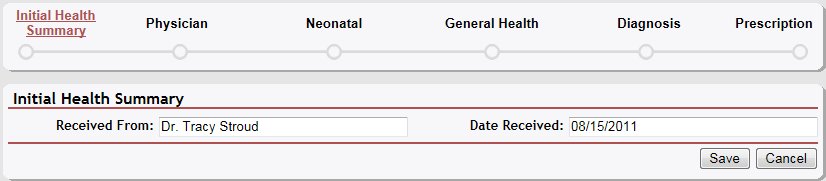

Health page (default view)
|
NOTE: This page contains collapsible data. Sections can be collapsed by clicking the [-] beside the section heading. Click the [+] to expand the section. Depending on the method of access and your current permissions, the page displays differently and some information may be disabled or unavailable. |

-
Click the [+] to expand the Physician section. The page expands to display a Physician table.
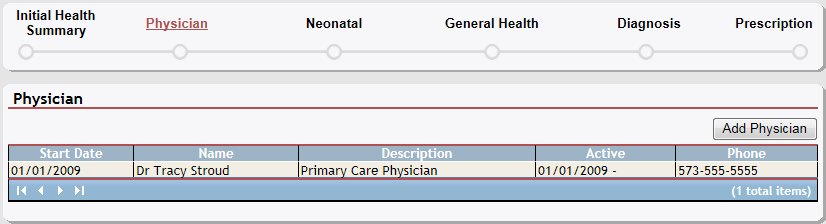
Health page (physician default view)
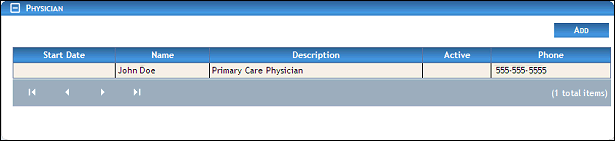
Health page (physician default view) for Coordinator/District roles

Health page (physician default view) for Provider/State roles
-
Double-click on a physician in the table. The page refreshes and displays detailed information below the table.
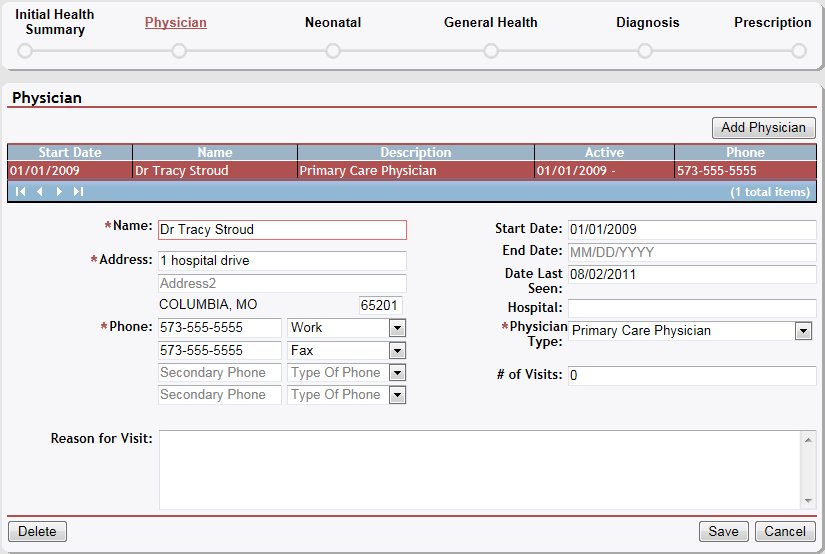
Health page (physician details view)
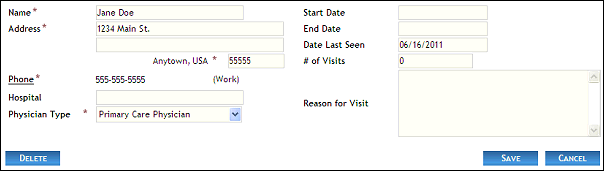
Health page (physician details view) for Coordinator/District roles
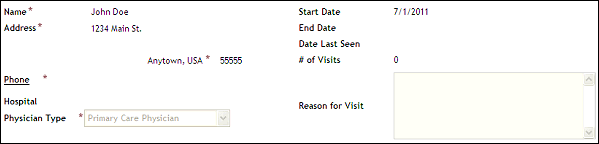
Health page (physician details view) for Provider/State roles
-
Click Delete. A confirmation message displays asking if you are sure you want to delete the physician.
-
Click OK. The page refreshes and the selected physician is removed from the table.
Version 1.6