Tutorial: Finalize Parental Consent
Use this tutorial to finalize the parent's consent to the child's initial evaluation or assessment on the Intake page before a child has been deemed eligible.
|
|
NOTE: After a child has been deemed eligible, this function is no longer available. |

Complete the following steps to perform this tutorial:
-
Display the Intake page.
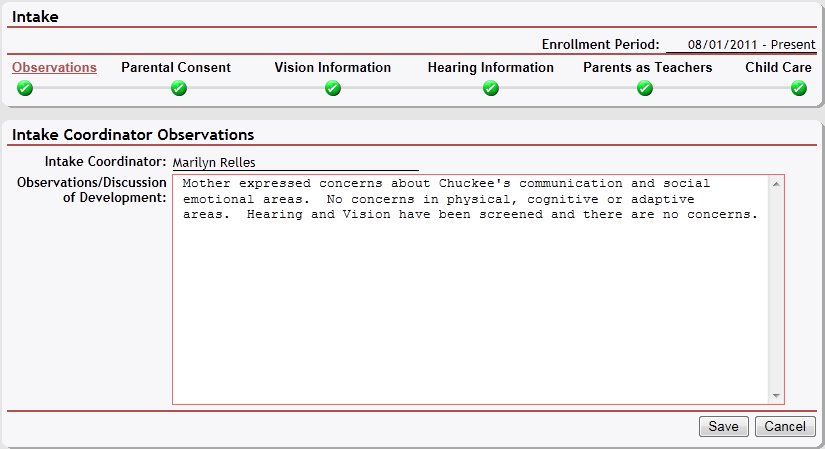
Intake page (default view)
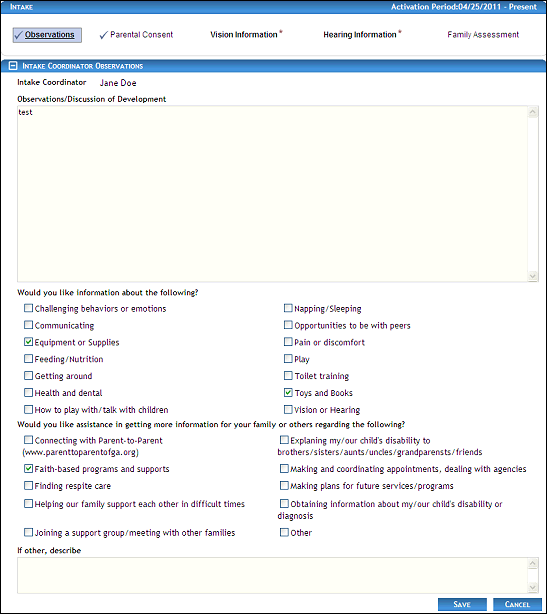
Intake page (default view) for Coordinator/District roles
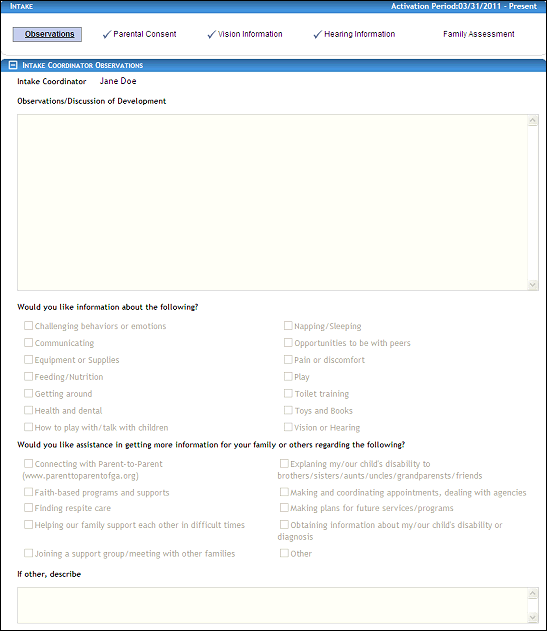
Intake page (default view) for Provider/State roles
|
NOTE: The Observations link is selected by default, and the page displays detailed observation information in the Intake Coordinator Observations section. Depending on the method of access and your current permissions, the page displays differently and some information may be disabled or unavailable. This page contains collapsible data. Sections can be collapsed by clicking the [-] beside the section heading. Click the [+] to expand the section. |
-
View or select the Activation Period in the Intake heading. If only one Activation Period exists for the child, the Activation Period is read-only.
-
Click the Finalize Parental Consent button. The page refreshes and displays a table with the status of all required edits in a Finalize Parental Consent section.
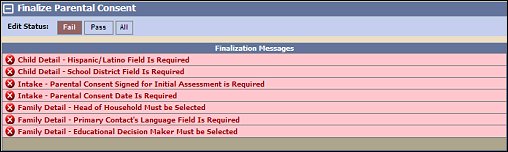
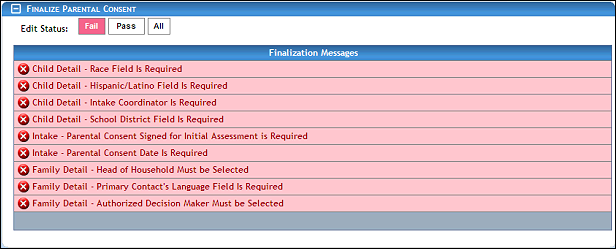
Intake page (finalization messages detail view)
-
View the finalization messages in the Finalization Messages table.
The table contains a list of all edit status messages required to finalize parental consent.
-
Filter the results in the Finalization Messages table by clicking the following buttons:
Click All to display all results available.
Select Pass to only display edits that have been completed.
Select Fail to only display edits that have not been completed and are still required.
-
Click on a finalization message to view or update the details on the appropriate page.
-
Complete the steps in the Tutorial: View or Update Child Details tutorial to record the required child information.
-
Complete the steps in the Tutorial: Add a Family Member tutorial to record the required family member information.
-
Complete the steps in the Tutorial: Add Parental Consent Details tutorial to record the required intake information.
|
NOTE: Asterisks (*) indicate which fields are required on the page. If required information is missing, an error message displays at the top of the page after saving the data. |
Version 1.6