Tutorial: View or Update Eligibility Reason Details
Use this tutorial to view or update eligibility reason details in the Eligibility Determination section of the Eligibility page.
Complete the following steps to perform this tutorial:
-
Display the Eligibility page.
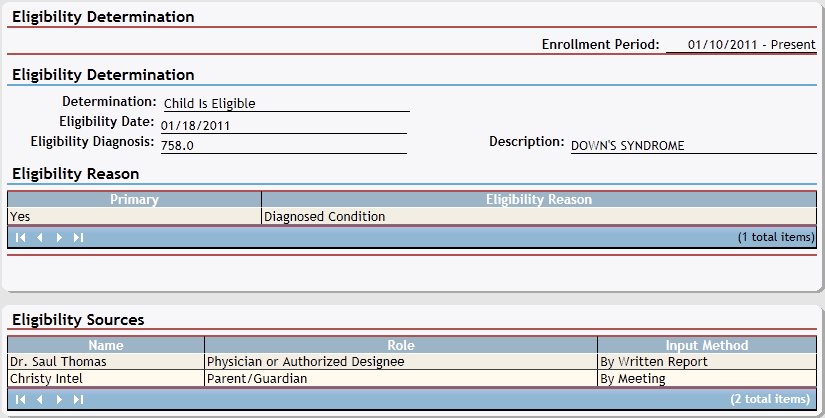
Eligibility page (default view)
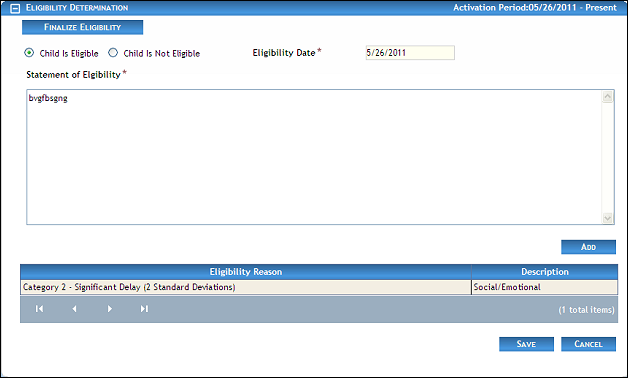
Eligibility page (default view) for Coordinator/District roles
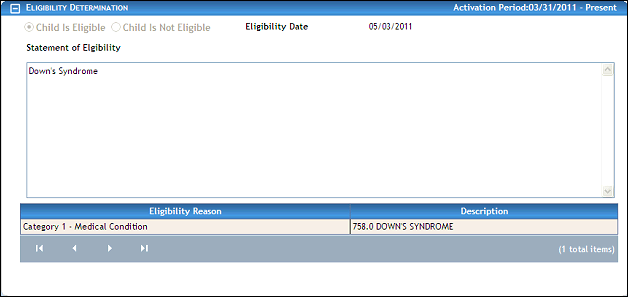
Eligibility page (default view) for Provider/State role
|
NOTE: This page contains collapsible data. Sections can be collapsed by clicking the [-] beside the section heading. Click the [+] to expand the section. |

-
View or select the Activation Period in the Eligibility Determination heading. If only one Activation Period exists for the child, the Activation Period is read-only.
-
Double-click on an eligibility reason in the table. The page refreshes and displays detailed information below the table.
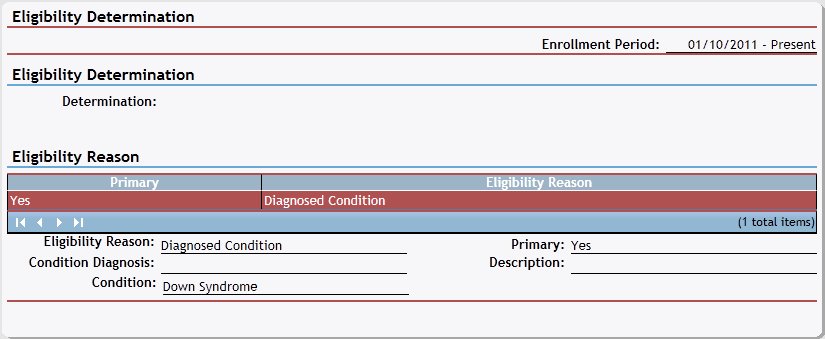
Eligibility page (eligibility reason details view)
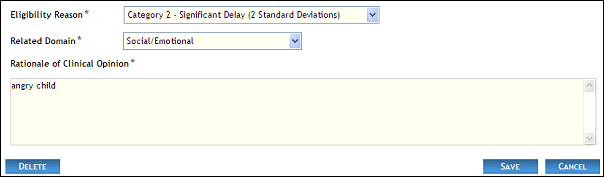
Eligibility page (eligibility reason details view) for Coordinator/District roles

Eligibility page (eligibility reason details view) for Provider/State roles
-
View or update the eligibility reason details:
In Eligibility Reason, select the eligibility reason for the person's eligibility determination from the drop-down list.
|
NOTE: Depending on the selection made in Eligibility Reason and your current permissions, the page displays differently and some information may be disabled or unavailable. If Category 1 - Medical Condition or Other Diagnosed Conditions is selected as the Eligibility Reason, the following control is available:
If Category 2 - Significant Delay or Moderate Delay is selected as the Eligibility Reason, the following controls are available:
If Diagnosed Condition is selected as the Eligibility Reason, the following control is available:
If Newborn Condition is selected as the Eligibility Reason, the following controls are available:
|
Primary indicates whether this is the primary diagnosis or determination.
Click the Condition Diagnosis link to display the Diagnosis List. Double-click on a diagnosis to select it. The page refreshes and displays the selected Diagnosis and Description.
In Related Domain, select the domain to which the diagnosis is related from the drop-down list.
In Rationale for Eligibility, enter the explanation for the diagnosis.
In Condition, select the diagnosed condition from the drop-down list.
Select the APGAR of 6 or less at 5 minutes check box to indicate that the child had an APGAR score of six or less, five minutes after birth. It is unchecked as the default.
Select the Ventilator or CPAP dependent for 72 hours or more check box to indicate that the person was dependent on a ventilator or CPAP after birth for 72 hours or more. It is unchecked as the default.
Select the Asphyxiation check box to indicate that the child asphyxiated. It is unchecked as the default.
Select the Intra-cranial Bleed (Grade II, III, IV) check box to indicate that the child had an intracranial bleed of grade II, III, or IV at birth. It is unchecked as the default.
Select the Thinking/Learning check box to indicate that the diagnosis is related to a person's thinking or learning ability, and enter a description in Statement of Impact.
Select the Communication check box to indicate that the diagnosis is related to a person's communication skills, and enter a description in Statement of Impact.
Select the Self-Help check box to indicate that the diagnosis is related to a person's ability for self-help, and enter a description in Statement of Impact.
Select the Movement check box to indicate that the diagnosis is related to a person's mobility, and enter a description in Statement of Impact.
Select the Social/Behaviors check box to indicate that the diagnosis is related to a person's social skills or behavior, and enter a description in Statement of Impact.
|
NOTE: Asterisks (*) indicate which fields are required on the page. If required information is missing, an error message displays at the top of the page after saving the data. |
-
Click the Save button. The page refreshes and displays the new information in the table.
Version 1.6