Tutorial: View or Update Physician Details
Use this tutorial to view or update physician details in the Physician section of the Health page.
|
NOTE: After a child has been deemed eligible, the data on the Health page is read-only and cannot be updated. |

Complete the following steps to perform this tutorial:
-
Display the Health page.
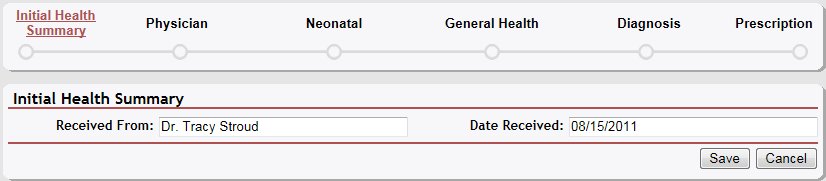

Health page (default view)
|
NOTE: This page contains collapsible data. Sections can be collapsed by clicking the [-] beside the section heading. Click the [+] to expand the section. Depending on the method of access and your current permissions, the page displays differently and some information may be disabled or unavailable. |
-
Click the [+] to expand the Physician section. The page expands to display the Physician table.
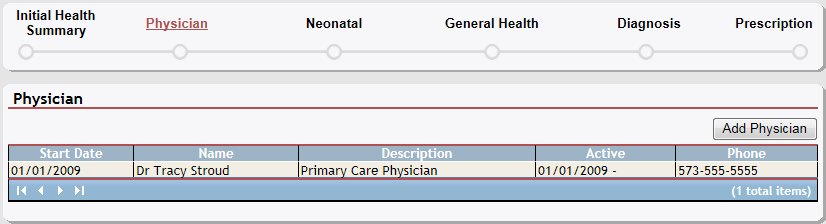
Health page (physician default view)
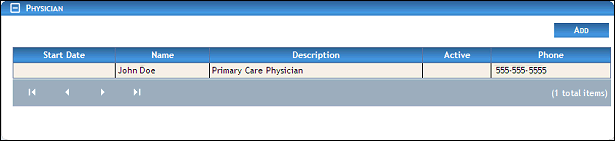
Health page (physician default view) for Coordinator/District roles

Health page (physician default view) for Provider/State roles
-
Double-click on a physician in the Physician table. The page refreshes and displays detailed information below the table.
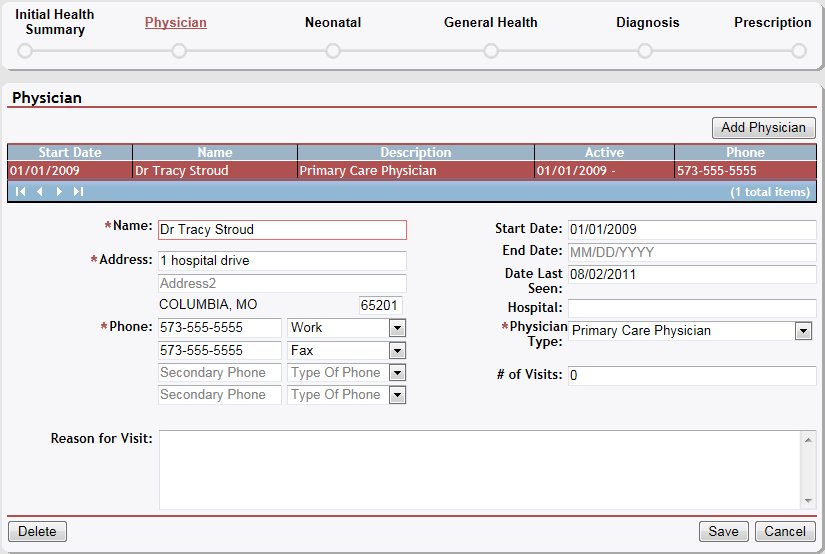
Health page (physician details view)
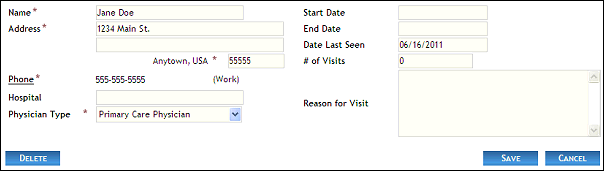
Health page (physician details view) for Coordinator/District roles
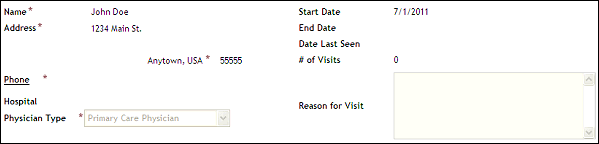
Health page (physician details view) for Provider/State roles
-
View or update the physician details.
In Name, enter the first and last name of the person or agency. At least two characters must be entered, and you can enter up to 100 characters as necessary.
In Address, enter the street address at which the residence (or office) is located. You can enter up to 100 characters as necessary in each of the two address controls as necessary.
In ZIP, enter the complete five-digit ZIP code in which the residence (or office) is located. Once entered, the name of the city and the two-character state abbreviation associated with the ZIP code are displayed.
In Phone, enter one or more telephone numbers at which the person can be contacted. For more information about entering telephone numbers, see the Telephone Numbers topic.
In Hospital, enter the name of the hospital with which the physician is affiliated.
In Physician Type, select the specific role to assign to the physician from the drop-down list.
In Other, enter the physician type if "Other" was selected from the drop-down list.
In Start Date, enter the date on which the person becomes active. When updating detailed information, the start date may be disabled. For more information about entering dates, see the Calendar Controls topic.
In End Date, enter the date on which the person becomes inactive as necessary. For more information about entering dates, see the Calendar Controls topic.
In Date Last Seen, enter the date on which the person was last seen by the physician. For more information about entering dates, see the Calendar Controls topic.
In Number of Visits, enter the number of times the person has been seen by the physician.
In Reason for Visit, enter the purpose of the visit.
|
NOTE: Asterisks (*) indicate which fields are required on the page. If required information is missing, an error message displays at the top of the page after saving the data. |
-
Click the Save button. The page refreshes and displays the updated information in the Physician table.
Version 1.6