|
NOTE: Depending on the method of access and your current permissions, this tutorial may not be available. |
Use this tutorial to add an attendee to an PSP Team meeting on the PSP Team Meeting Details page.
|
NOTE: Depending on the method of access and your current permissions, this tutorial may not be available. |
Complete the following steps to perform this tutorial:
Access the PSP Team Meeting Details page.
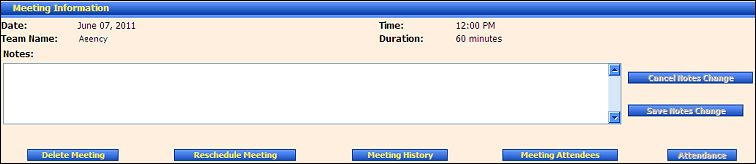
PSP Team Meeting Details page (default view) for District role
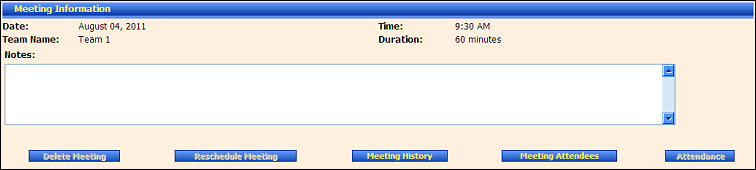
PSP Team Meeting Details page (default view) for Provider/State roles
Click the Meeting Attendees button. The page refreshes to display the Meeting Attendees table.
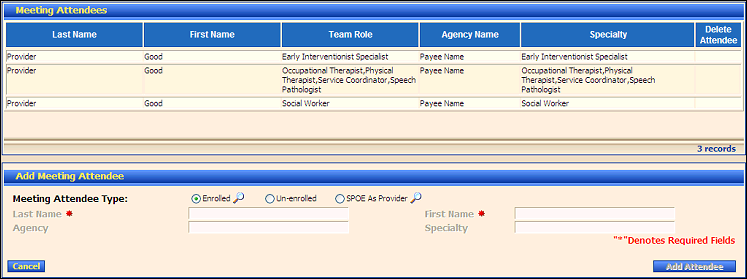
PSP Team Meeting Details page (meeting attendees view)
In the Add Meeting Attendee section, enter the following details:
In Meeting Attendee Type, select one of the following radio buttons:
If the provider is currently enrolled, select the Enrolled radio button.
If the provider is not currently enrolled, select the Un-enrolled radio button.
If the provider is a subcontractor, select the District As Provider radio button.
|
NOTE:
When the Enrolled radio button
is selected or the When the District
As Provider radio button
is selected or the |
In Last Name, enter the last name of the person. At least two characters must be entered. You can enter up to 40 characters as necessary.
In First Name, enter the first name of the person. At least two characters must be entered. You can enter up to 25 characters as necessary.
In Agency, enter the name of the associated agency. You can enter up to 65 characters as necessary.
In Specialty, enter the specialty of the person. At least two characters must be added, and you can enter up to 40 characters as necessary.
|
NOTE: Asterisks (*) indicate which fields are required on the page. If required information is missing, an error message displays at the top of the page after saving the data. |
Click Add Attendee. The page refreshes and displays the new information in the table.
Version 1.6


 icon is clicked, the