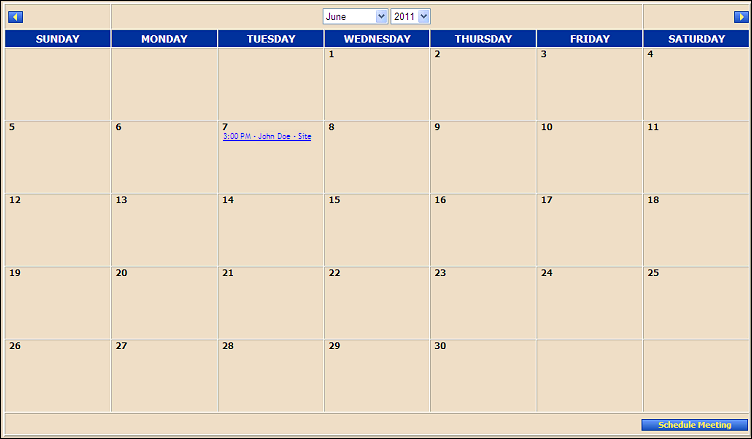
PSP Team Meeting Calendar page (default view)
Use this tutorial to reschedule an PSP Team meeting on the PSP Team Meeting Calendar page.
Complete the following steps to perform this tutorial:
Display the PSP Team Meeting Calendar page.
PSP Team Meeting Calendar page (default view)
Click the link for a specific PSP Team meeting displayed on the calendar. The PSP Team Meeting Details page displays.
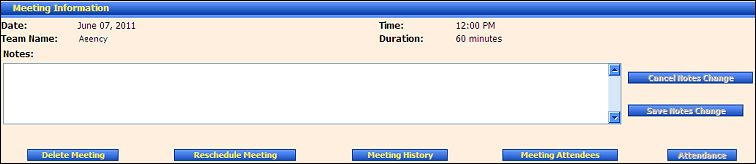
PSP Team Meeting Details page (default view) for District role
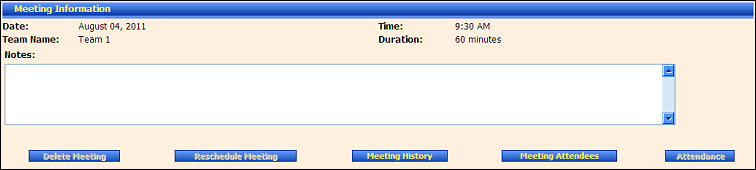
PSP Team Meeting Details page (default view) for Provider/State roles
Click Reschedule Meeting. The page expands to display the Reschedule Meeting section with additional fields for entry.

PSP Team Meeting Details page (reschedule meeting view)
Update the meeting schedule.
In Date, enter the date of the activity. For more information about entering dates, see the Calendar Controls topic.
In Time, select the time of the activity from the drop-down list.
Team Name displays the name of the PSP Team for which the meeting is scheduled.
In Duration, enter the duration of the activity in minutes.
|
NOTE: Asterisks (*) indicate which fields are required on the page. If required information is missing, an error message displays at the top of the page after saving the data. |
Click the Save button.
Version 1.6
