Tutorial: Add a Coordinator for a Child
Use this tutorial to add a service or intake coordinator for a child in the Coordinator section of the Child Detail page.
Complete the following steps to perform this tutorial:
-
Display the Child Detail page.
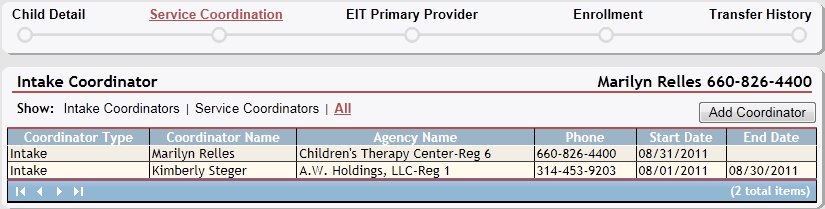
Child Detail page (service coordinator default view)
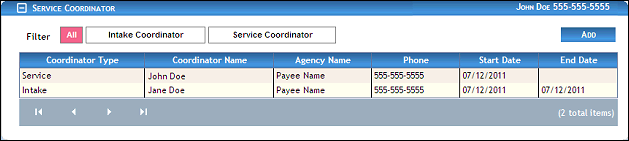
Child Detail page (service coordinator default view) for Coordinator/District roles
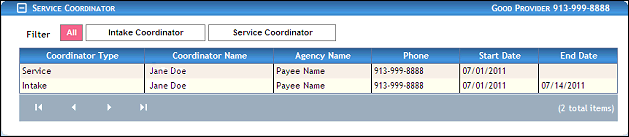
Child Detail page (service coordinator default view) for Provider/State roles
|
NOTE: This page contains collapsible data. Sections can be collapsed by clicking the [-] beside the section heading. Click the [+] to expand the section. Depending on the method of access and your current permissions, the page displays differently and some information may be disabled or unavailable. |

-
In the Coordinator section, click Add. The page refreshes and displays additional fields for entry.
The radio button group indicates the type of coordinator that can be added for the child. The radio button group consists of the following radio buttons:
-
The Intake Coordinator radio button is used to add an intake coordinator.
-
The Service Coordinator radio button is used to add a service coordinator.
|
|
NOTE: The default selection in the radio button group is based on the child's status. |


Child Detail page (add service coordinator view)
-
Complete the following information as necessary. End Date is an optional field.
Click the Coordinator link to search for and select a service coordinator. For more information about searching for and viewing the list of coordinators, see the Service Coordinator Search topic.
In Start Date, enter the date on which the person becomes active. When updating detailed information, the start date may be disabled. For more information about entering dates, see the Calendar Controls topic.
In End Date, enter the date on which the person becomes inactive as necessary. For more information about entering dates, see the Calendar Controls topic.
|
NOTE: Asterisks (*) indicate which fields are required on the page. If required information is missing, an error message displays at the top of the page after saving the data. |
-
Click the Save button. The page refreshes and displays the new information in the Coordinator table.
Version 1.6