Tutorial: Refer a Child (NICU)
Use this tutorial to perform the online referral process and refer a child to the Georgia Babies Can't Wait program on the NICU Referral page.
|
|
NOTE: This tutorial can only be performed when you are logged out of the Georgia Babies Can't Wait system. When you are logged into the system, you can add an internal referral instead. For more information, see the Tutorial: Add an Internal Referral from the Referrals Page tutorial. |

Complete the following steps to perform this tutorial:
-
If you are currently logged into the Georgia Babies Can't Wait system, select the Logout link at the top left of the page. You are logged out of the system and the Home page displays.
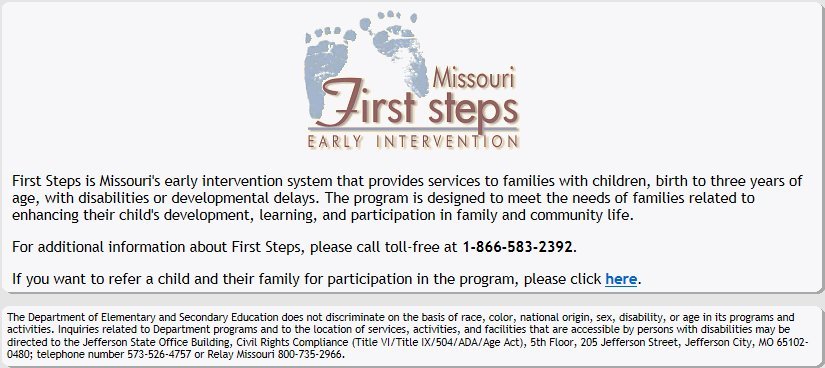
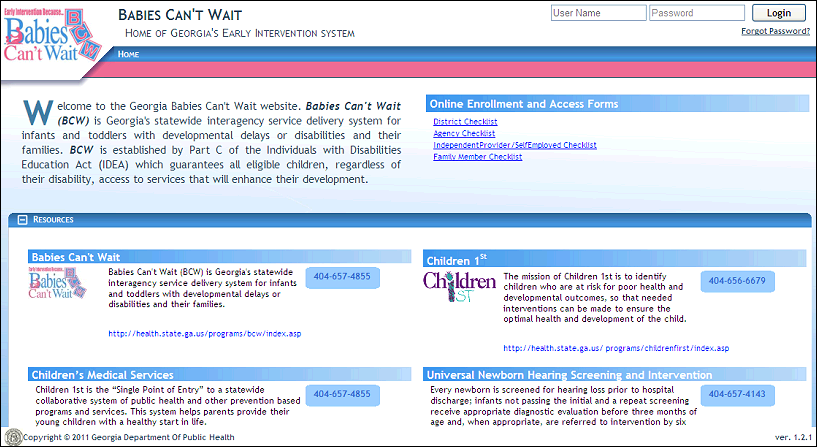
Home page (default view)
-
In the Babies Can't Wait for the Family section, select the Refer A Child link. The Referral Source page displays.
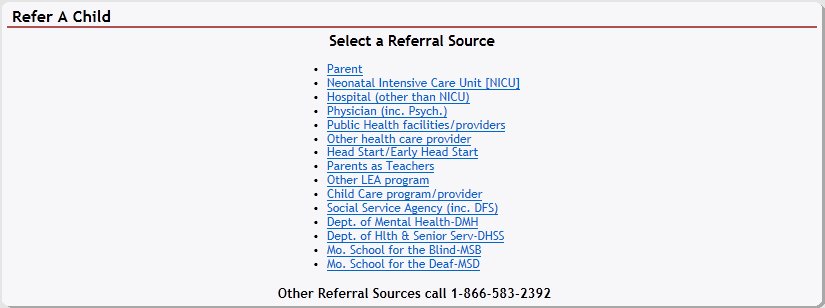
Referral Source page (default view)
-
Select the Neonatal Intensive Care Unit (NICU) link. The NICU Referral (Access Code) page displays.

NICU Referral (Access Code) page (default view)
-
Enter the Access Code and click Next. The NICU Referral page displays.
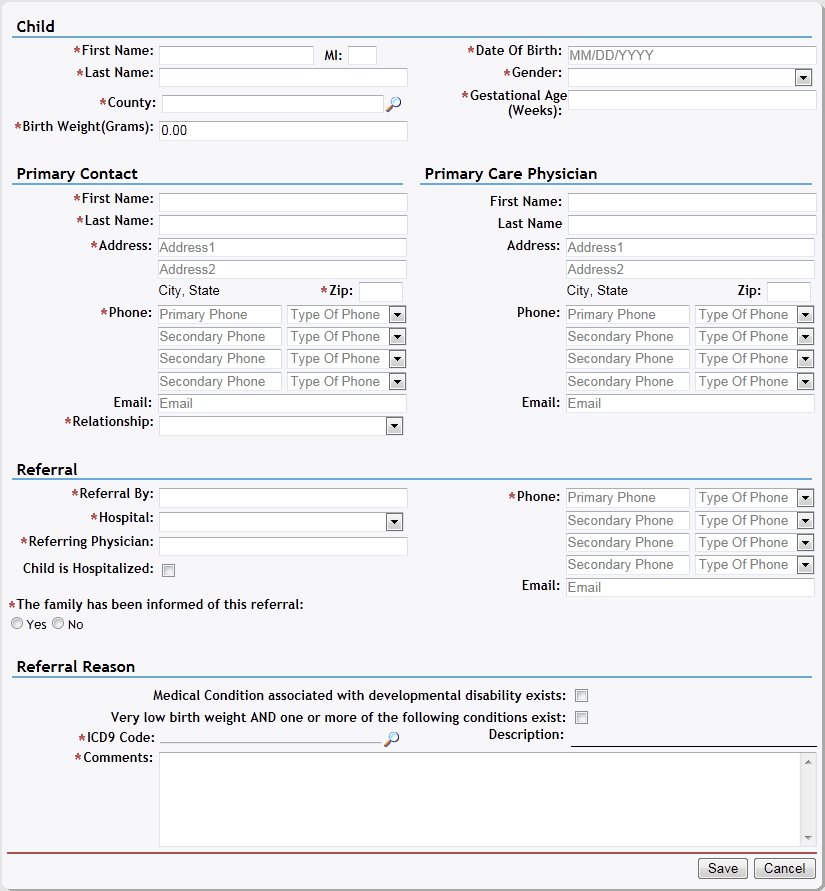
NICU Referral page (default view)
|
|
NOTE: If you selected a NICU Referral Source, you are prompted to enter an access code. For more information about NICU referrals, see the Tutorial: Refer a Child (NICU) tutorial. |
-
Add the child's details.
The Child section contains the child's demographic data, which can be entered as follows:
In First Name, enter the first name of the person. At least two characters must be entered. You can enter up to 25 characters as necessary.
In Middle Name, enter the middle name of the person. Only one alphabetic character can be entered.
In Last Name, enter the last name of the person. At least two characters must be entered. You can enter up to 40 characters as necessary.
Click the Select County link to search for and select the county in which the person resides or practices. For more information about searching for and viewing the list of counties, see the County Search topic.
In Date of Birth, enter the month, day, and year on which the person was born. For more information about entering dates, see the Calendar Controls topic.
In Gender, select the person's sex from the drop-down list.
In Gestational Age (Weeks), enter the person's gestational age in weeks. Only whole, numeric digits can be entered.
In Birth Weight (Grams), enter the person's birth weight in grams. Only numeric digits with up to 2 decimal places can be entered.
-
Add the contact information for the child's primary contact person.
The Primary Contact section displays the name and details for the child's primary contact person, which can be entered as follows:
In First Name, enter the first name of the person. At least two characters must be entered. You can enter up to 25 characters as necessary.
In Last Name, enter the last name of the person. At least two characters must be entered. You can enter up to 40 characters as necessary.
In Address, enter the street address at which the residence (or office) is located. You can enter up to 100 characters as necessary in each of the two address controls as necessary.
In ZIP, enter the complete five-digit ZIP code in which the residence (or office) is located. Once entered, the name of the city and the two-character state abbreviation associated with the ZIP code are displayed.
In Phone, enter one or more telephone numbers at which the person can be contacted. For more information about entering telephone numbers, see the Telephone Numbers topic.
In Email, enter the electronic mail address for the person. Email addresses must be entered in the format of: name@xxx.zzz. At least 10 characters must be entered, and you can enter up to 50 characters as necessary.
In Relationship, select the specific relationship in the household to assign to the person from the drop-down list.
-
Add the contact information for the child's primary care physician, as necessary.
The Primary Care Physician section displays the name and details for the child's primary care physician, which can be entered as follows:
In First Name, enter the first name of the person. At least two characters must be entered. You can enter up to 25 characters as necessary.
In Last Name, enter the last name of the person. At least two characters must be entered. You can enter up to 40 characters as necessary.
In Address, enter the street address at which the residence (or office) is located. You can enter up to 100 characters as necessary in each of the two address controls as necessary.
In ZIP, enter the complete five-digit ZIP code in which the residence (or office) is located. Once entered, the name of the city and the two-character state abbreviation associated with the ZIP code are displayed.
In Phone, enter one or more telephone numbers at which the person can be contacted. For more information about entering telephone numbers, see the Telephone Numbers topic.
In Email, enter the electronic mail address for the person. Email addresses must be entered in the format of: name@xxx.zzz. At least 10 characters must be entered, and you can enter up to 50 characters as necessary.
-
Add the details on the child's referral and referring person.
The Referral section displays the source and reason of the child's referral, which can be entered as follows:
In Referral By, enter the first and last name of the individual that referred the child.
In Hospital, enter the name of the hospital with which the physician is affiliated.
In Referring Physician, enter the first and last name of the physician that referred the child.
Select the Child Is Hospitalized check box to indicate that the child is currently in the hospital. It is unchecked as the default.
Select The family has been informed of this referral check box to indicate that the family has been contacted regarding the child's referral to the Georgia Babies Can't Wait program.
In Phone, enter one or more telephone numbers at which the person can be contacted. For more information about entering telephone numbers, see the Telephone Numbers topic.
In Email, enter the electronic mail address for the person. Email addresses must be entered in the format of: name@xxx.zzz. At least 10 characters must be entered, and you can enter up to 50 characters as necessary.
|
NOTE: Asterisks (*) indicate which fields are required on the page. If required information is missing, an error message displays at the top of the page after saving the data. |
-
Select the reason for the referral.
The Referral Reason section displays the reason for the child's referral, which can be selected as follows:
Select the Medical Condition associated with developmental disability exists check box to indicate that the child currently has a medical condition that is associated with a developmental disability. It is unchecked as the default.
Select the Very low birth weight AND one or more of the following conditions exist check box to indicate that the child had a very low birth weight and that another condition exists. It is unchecked as the default. When checked, select one or more of the additional check boxes available as applicable.
Select the Asphyxiation check box to indicate that the child asphyxiated. It is unchecked as the default.
Select the Intracranial Bleeds (Grade II, III, IV) check box to indicate that the child had an intracranial bleed at birth of grade II, III, or IV. It is unchecked as the default.
Select the APGAR of 6 or less at 5 minutes check box to indicate that the child had an APGAR score of six or less, five minutes after birth. It is unchecked as the default.
Select the Ventilator or CPAP dependent for 72 hours or more check box to indicate that the child has been on a ventilator or was CPAP dependent for at least 72 hours. It is unchecked as the default.
In Comments, enter additional notes or details. At least 1 character must be entered, and up to 1000 characters can be entered as necessary.
-
Click the ICD9 Code link to search for and select the specific ICD9 code to add. The ICD9 Code Search page displays.


ICD9 Code Search page (default view)
-
Complete information in one or more of the following fields to perform a search:
In ICD9, enter the ICD9 code on which to search. You can enter partial information to widen your search. At least two characters must be entered, and up to 10 characters can be entered as necessary.
In Description, enter additional description information on which to search. You can enter partial information to widen your search. At least two characters must be entered, and up to 50 characters can be entered as necessary.
-
Click Search. The page refreshes and results found to match the search criteria display in the results table.
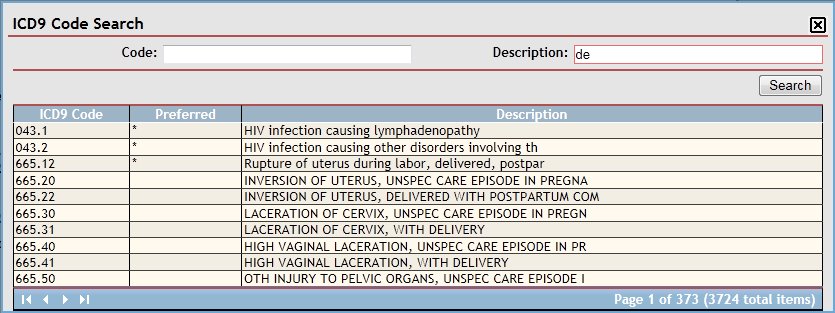
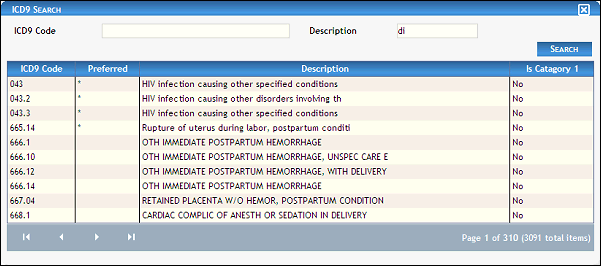
ICD9 Code Search page (results found)
When Search is clicked, results found to match the search criteria specified are displayed in the following column(s) of the table:
ICD9 Code displays the ICD9 code of the diagnosis.
Preferred indicates whether the diagnosis is preferred.
Description displays additional descriptive information.
|
NOTE: If no results are found, the table displays a single row containing the text: "No Records Found". For more information about tables, see the Tables topic. |
-
Double-click on an ICD9 code in the results table to select the code. The NICU Referral page refreshes and displays the selected code.
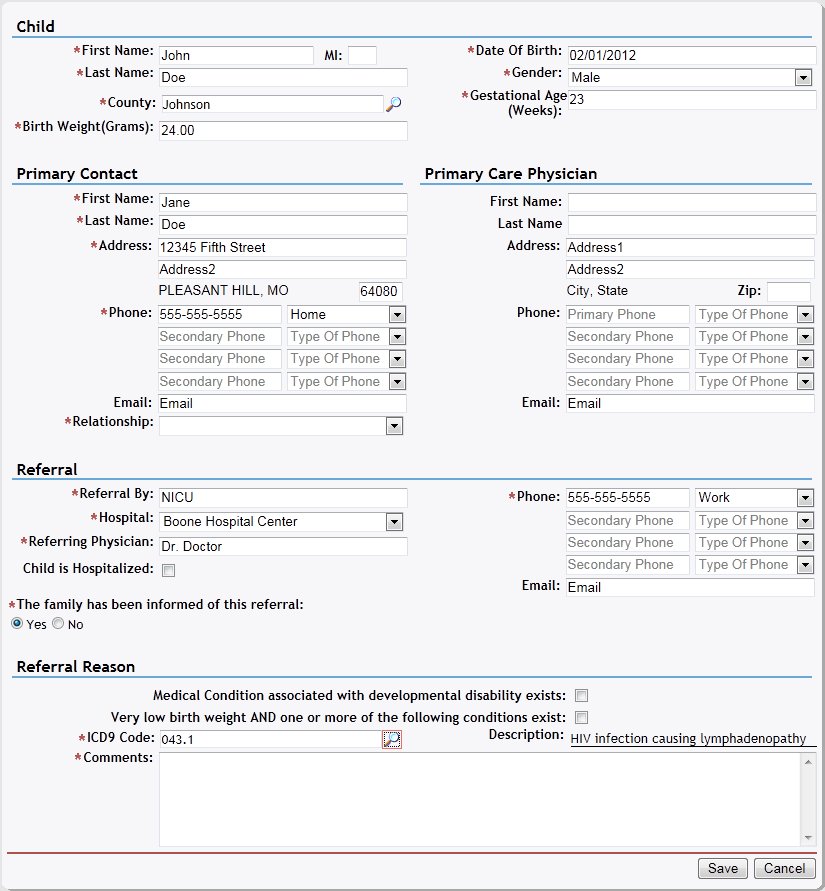
NICU Referral page (ICD9 Code selected)
-
Click the Save button. The page refreshes and displays the new information in the Referrals table.
Version 1.6